
Achieve more with ATAS for HyperTicks
Get a free ATAS license and start your challenge
Registration
Get a free ATAS license and start your challenge

1. Register your ATAS account by filing the form above
2. Download and install ATAS for Windows
3. Launch the software using the login and password received by email after registration
4. Connect HyperTicks account. No account opened? You can register it here
5. Evaluate your trading and get a funded account
More detailed instructions for the ATAS software installation you can find in our Knowledge Base.
First, you should start ATAS to connect your HyperTicks account.
On the Authorization window, enter your login and password received by email after registration in the form above.
⚠️ The login credentials from the atas.net website will not be valid.
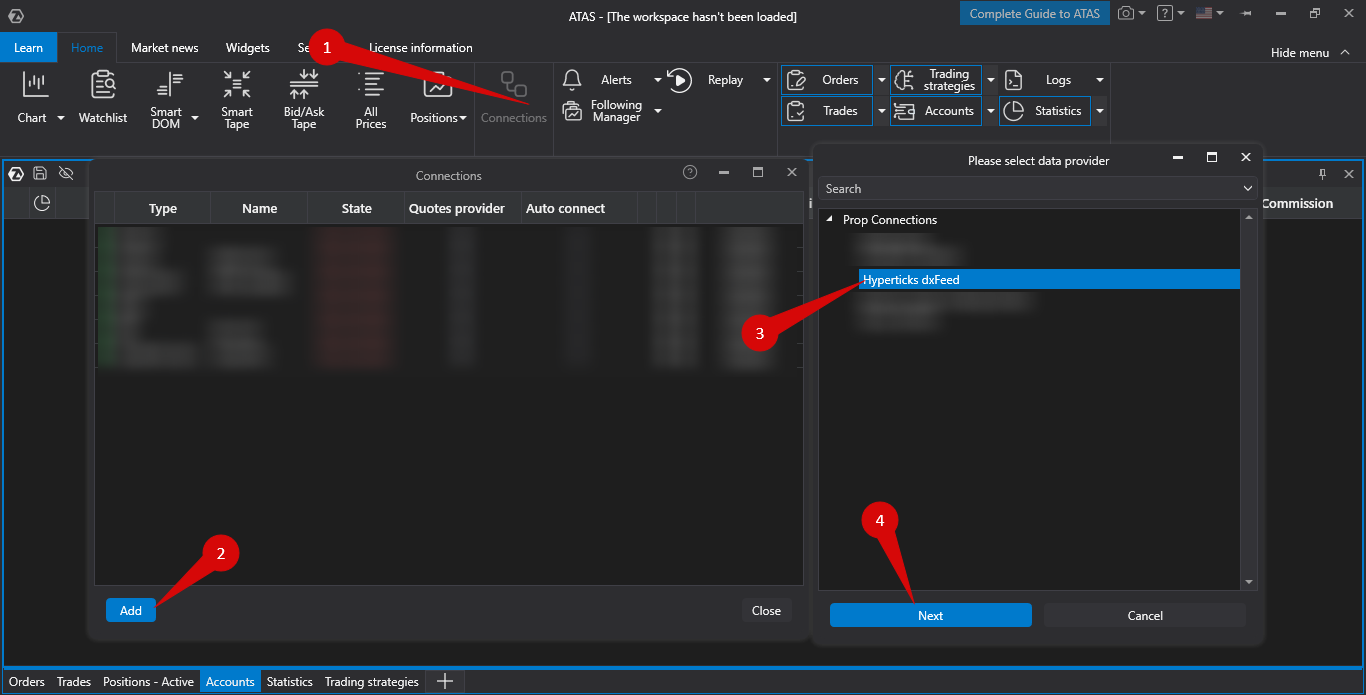
To connect your account, click the Connections button on the main window, then click Add.
On the next window, select Hypertricks dxFeed and click Next.
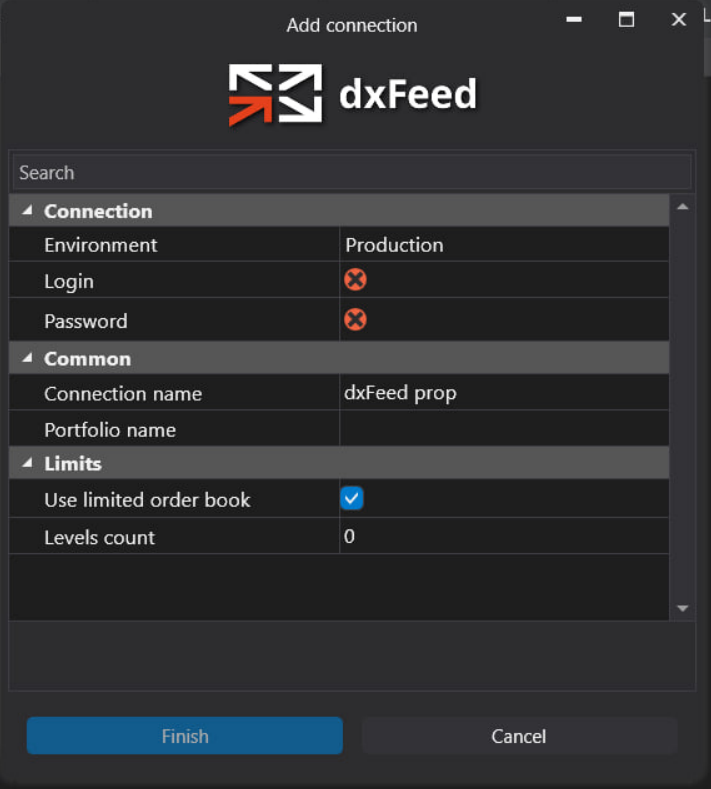
Enter the login and password for Hypertricks account.
If you do not have a HyperTicks account yet – you can open it by filling the form above.
Click Finish.
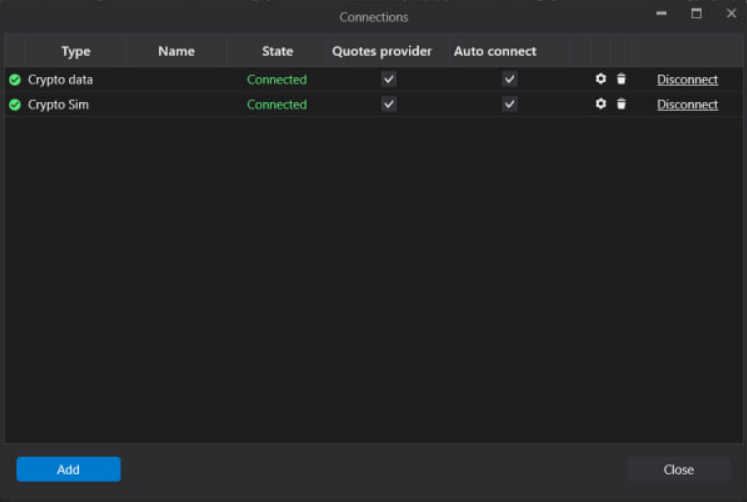
After configuring the connection, it will appear as a separate line in the list of connections:
You can read about the settings of this window by following the link: Connection Settings Window.
If you want to connect your account automatically every time you start ATAS, check the box under the “Auto connect” column and click the “Connect” button.
All set. Your HyperTicks account is now connected, and you can start your evaluation!
When using the ATAS license for HyperTicks, only HyperTicks challenges ( Step 1 and Step 2 ) can be connected to the analytical platform.
Yes, this license type can be used for a Sim Funded HyperTicks propfirm account.