In simple words it is a list of the ‘hottest’ markets.
You can use a Watchlist to easily open:
- the selected instrument chart;
- Smart DOM;
- Spread Tape;
- Smart Tape.
You can add up to 500 instruments in a Watchlist.
Using a Watchlist
Watchlist is required for watching the instrument parameters in one window rather than switching between several windows.When a trader gets ready for a coming trading session, he selects potentially interesting instruments. For example, a separate Watchlist could be created for:
- instruments, which are in a balance;
- stocks, which opened with a gap;
- stocks, reports on which have been published.
There could be many Watchlists and they could be cloned. Also, every Watchlist may have a unique name.
How to create a Watchlist
You can create a new Watchlist from the main window.
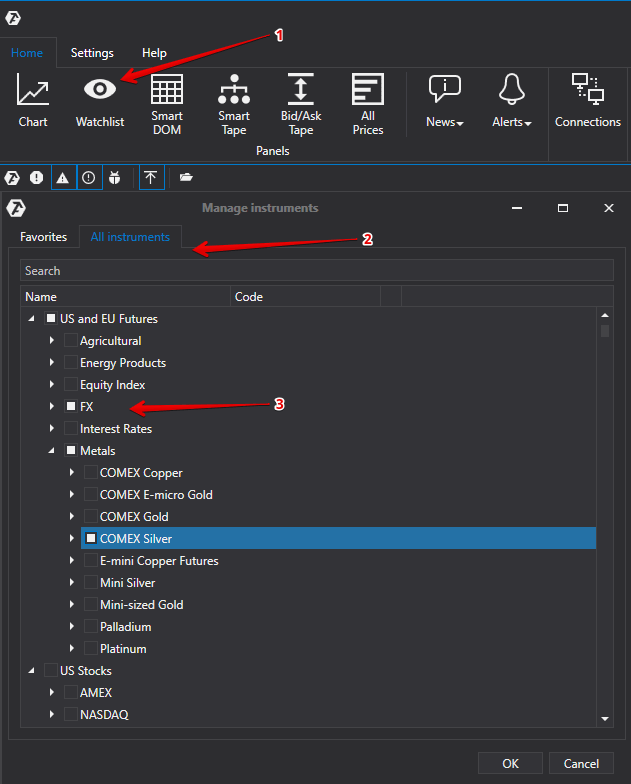
You can add both separate instruments to a Watchlist and groups of instruments, for example, all FX futures or all calendar futures of a certain type.
How to set up a Watchlist
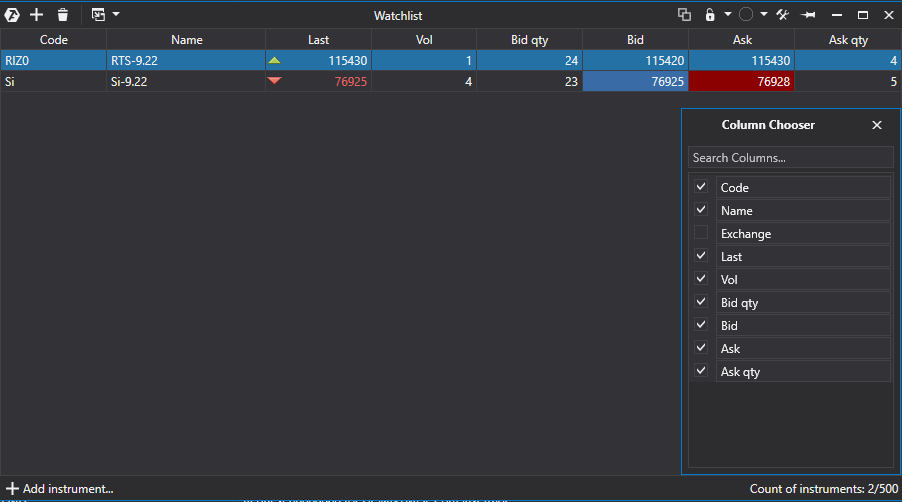
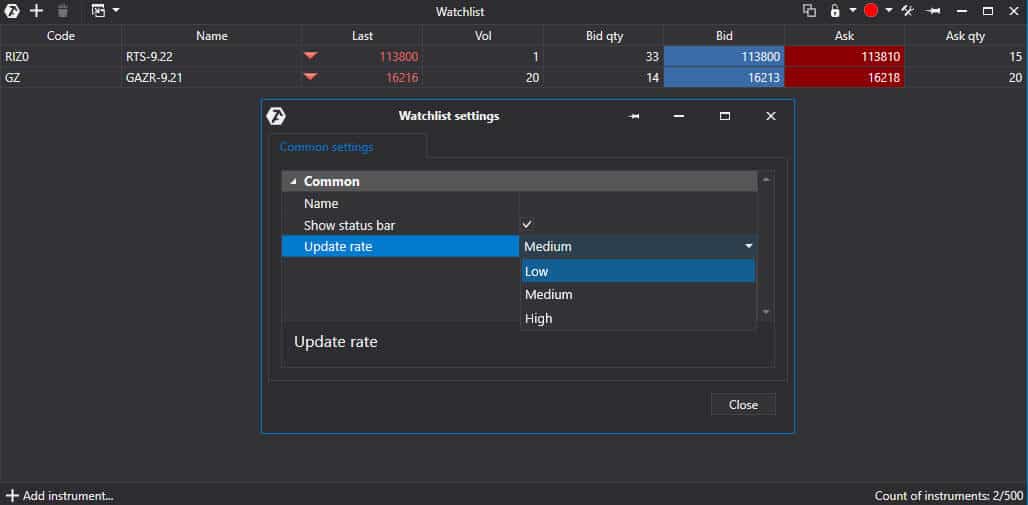
You can set up a watchlist after you have created it. It means that you can select the fields, which will be displayed. By default, a trader can see 8 fields:- code;
- short instrument name;
- last price;
- volume;
- Bid price;
- Ask price;
- Bid volume;
- Ask volume.
Any of these fields could be removed and the created Watchlist could be fixed on top of other windows, so that you can constantly see it.
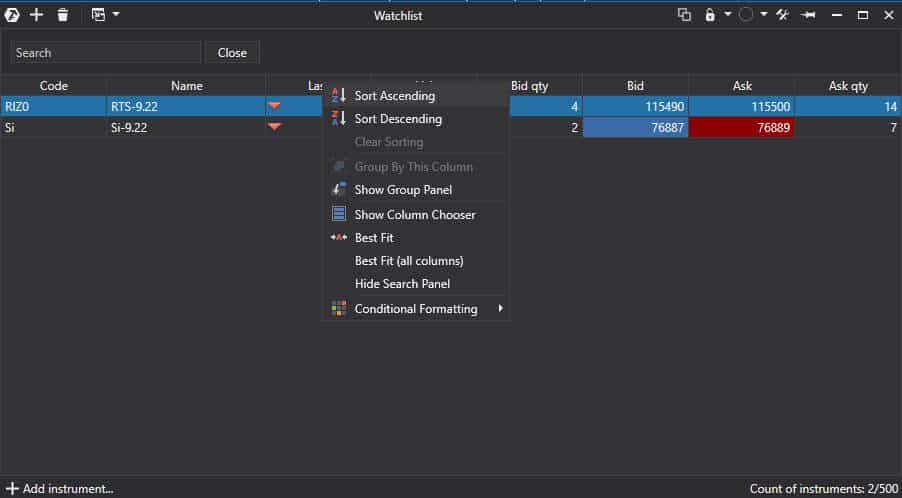
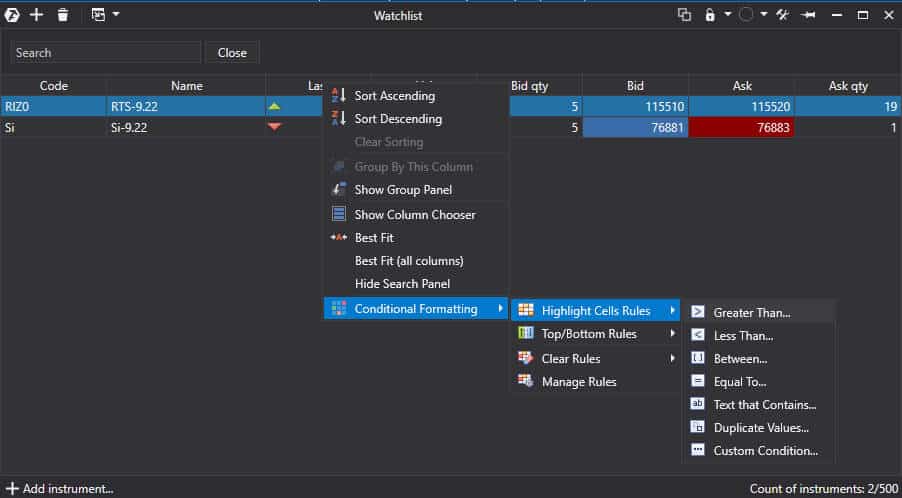
A trader may also change the colour settings – there is a special setup item for this, which is called ‘Conditional Formatting’.
For example, a trader may highlight yellow those cells, in which the volume is equal to a certain number. Besides, advanced traders may create their own rules of cell highlighting.
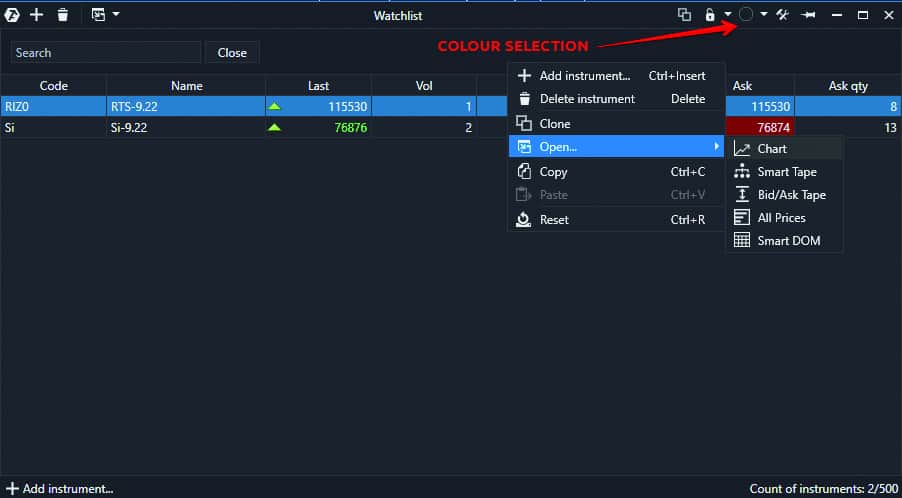
- chart;
- Smart Tape;
- Spread Tape;
- All Price table;
- Smart DOM.
If you select a certain colour in the upper menu, all opened windows will be marked with it.
- drag it from another list;
- enter the name in the search field;
- add it from the context menu, which appears after clicking the right mouse button;
- add it from the bottom or upper menu;
- copy (Ctrl+c) and paste (‘Ctrl+v’) the name of the required instrument.
You can remove an instrument from a Watchlist:
- using the Delete button;
- from the upper menu;
- from the context menu, which appears after clicking the right mouse button.
The Watchlist data could be updated with a different rate from 4 to 1 times a second.
We hope that this new function of the ATAS platform will be useful for you.
Information in this article cannot be perceived as a call for investing or buying/selling of any asset on the exchange. All situations, discussed in the article, are provided with the purpose of getting acquainted with the functionality and advantages of the ATAS platform.