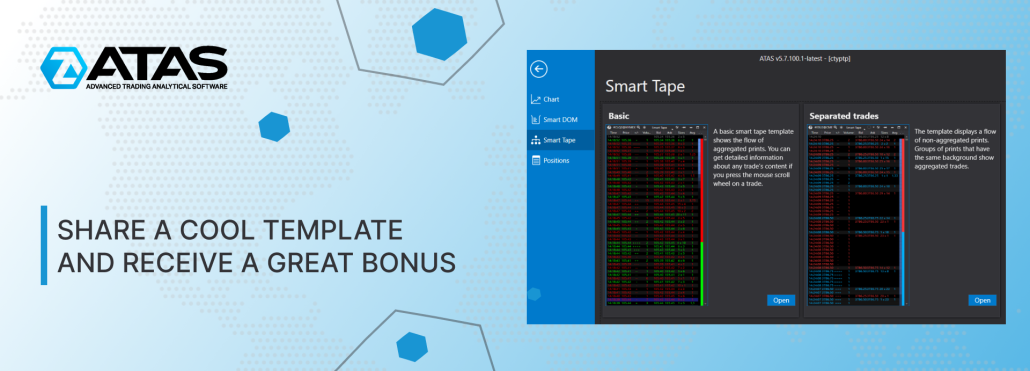
Share a cool template and receive a great bonus!
One feels like a market shark when selecting the ideal configuration of indicators or prints for the analysis of a trading model. It is a good reason to be proud since properly configured instruments increase the quality and efficiency of trading. Would you like your work to be appreciated by other traders? Share your template options with other members of the ATAS community!We will select the most useful templates and add them to the public gallery. And that is not all! The authors of the best templates will receive one additional month of free use of the platform as a thank-you for their contribution to the development of the community.
Requirements for templates
All templates undergo mandatory moderation before getting into the ATAS gallery. Our goal is to collect the most useful, visually convenient and easy-to-use templates into a single library. Please make sure the template you upload meets the following criteria:- Preview. Write a brief description of the template: why it is useful, what can be seen with it.
- Nothing extra. The template should not be overloaded with indicators. We will not add templates that create a heavy load.
- Visually convenient. Data should be displayed equally well in different chart modes: candlestick, bar, line, cluster.
- Examples of using. Successful cases, detailed description or screenshots of how the template works (optional).
Please send your templates to support@atas.net
How to download / import templates
To work with templates, click on the icon of the same name in the chart menu. Select Settings from the drop-down menu. The Templates/Snapshots window will open, there you will find all the necessary indicators, color settings and graphical objects applied to the chart, time frame and chart type.- To save the settings as a template, click the Add button. Enter a name for the template and click OK to confirm.
- To share the finished template with other traders, click the Export button and specify the folder on your hard drive where you want to save the file.
- To add a downloaded template from the ATAS gallery to the platform, click the Import button and select a file with ready-made chart settings.
You can read a detailed instruction on how to work with templates in the Knowledge Base.