By default, after installing ATAS, your workspace loads with dxFeed futures data on a 15-minute delay. To switch to real-time data, you need to connect an external source — a broker or a data provider. So the next step after installation is choosing and connecting the right data feed.
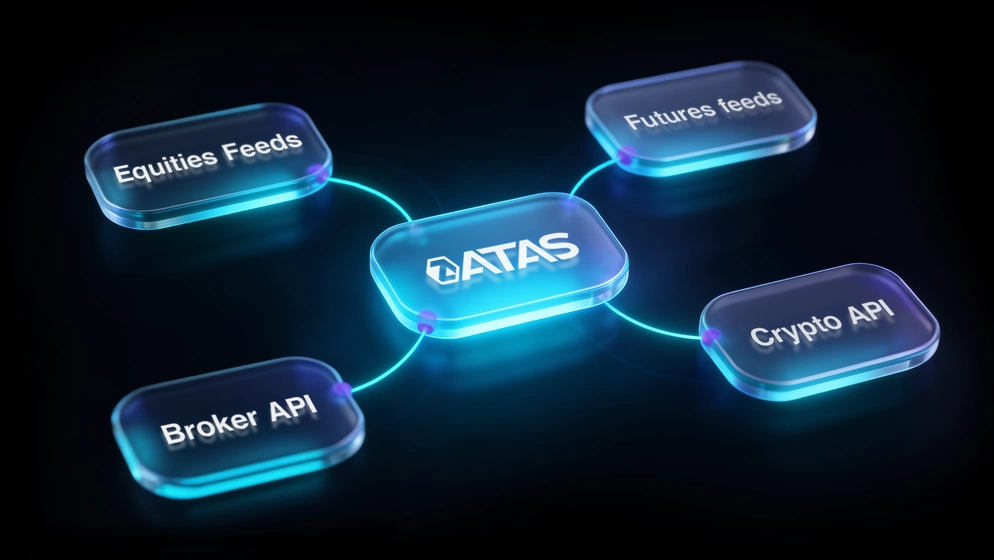
There are four ways to get market data in ATAS.
Below, we’ll cover each option in detail. We start with demo accounts — how to get your first data and explore the analytics platform without registering with a broker. Then we move on to paid providers for those who need real-time data without a brokerage account. We wrap up with broker connections and crypto exchanges — from Interactive Brokers to Binance and Bybit.
Start now!
Try ATAS free with no time limit
Free Demo Accounts for Exploring Volume Analysis
The ATAS SIM (15-min. delayed) demo account is the first thing you see after installing the analytics platform. You can also choose other built-in demo accounts — Crypto SIM or Crypto Data — or connect external ones: Rithmic Demo, IQFeed Demo and CTS Demo, which give access to real market data in test mode.
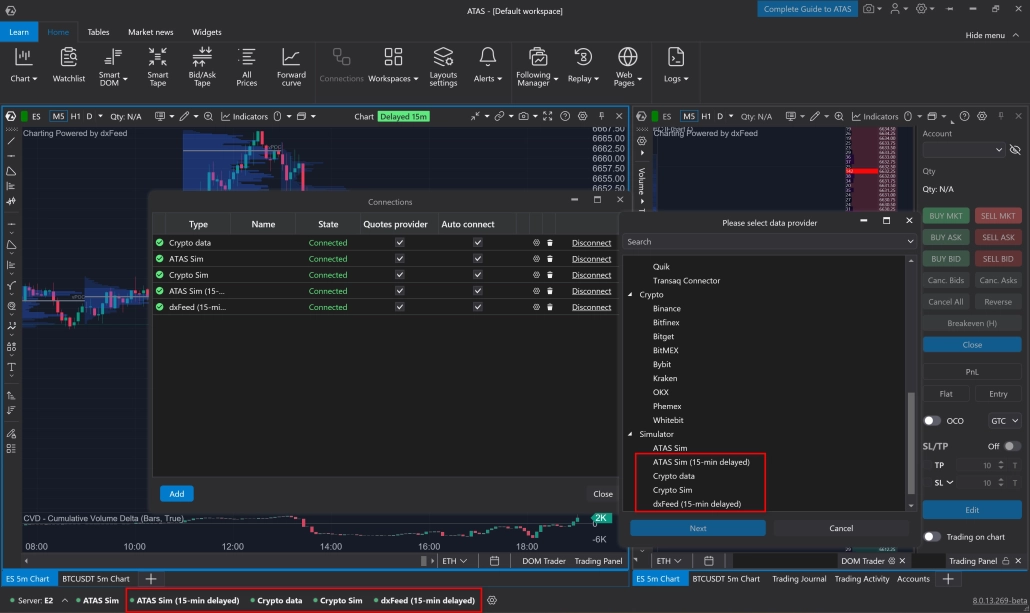
ATAS SIM (15-min. delayed)
Builds charts using dxFeed data with a 15-minute delay. This lets you see the real market structure without being tied to the current moment. A convenient option for those who want to study volume analysis on real historical patterns without rushing into live data.
Note: Historical data depth may vary depending on the chart type. See the instructions for details.
⚠️ ATAS SIM is a futures account simulator, not a market data source. It lets you practice order execution on a virtual account without risking real funds, but does not provide live market data. Activating it as a data provider may block data reception from other sources.
→ Detailed guide to connecting ATAS SIM
Crypto SIM
A demo account for working with Binance futures. All orders, including OCO, are processed and executed on ATAS’s demo server — no real transactions involved.
→ Detailed guide to connecting Crypto SIM
Crypto Data
A connector for receiving market data from crypto exchanges without a real account. Order management is unavailable — data for analysis only.
Note: Crypto Data provides market data with limited order book depth. For full-featured volume analysis with complete Order Book depth, you’ll need to connect a real exchange account via API.
→ Detailed guide to connecting Crypto Data
If you want to work with real market data in test mode, there are three external options. Each requires a brief registration on a third-party site, after which the login and password are entered into ATAS as a standard connection.
Rithmic Demo
A 14-day free trial with real market data. A solid option for exploring futures data with a full, undelayed feed.
-
Go to
signup.rithmic.com/demo.htmland complete the registration form. - When signing the second agreement, select Non-Professional status — otherwise, after the trial, data access will be billed at professional rates.
- Confirm your registration via the link in the email.
-
In ATAS:
Connections → Add → Rithmic → Next. Enter your Rithmic login and password. When selecting a server, choose Rithmic Paper Trading.
→ Detailed guide to registering and connecting Rithmic Demo
IQFeed Demo
A trial with access to a wide range of US exchanges. Registration requires a Visa or Mastercard — $1 will be charged for verification and immediately refunded.
After registering at iqfeed.net, download and install the IQFeed client software, then add the connection in ATAS: Connections → Add → IQFeed → Next.
→ Detailed guide to registering for IQFeed Demo
CTS Demo
A demo account from data provider CTS (T4). Data arrives with a 10-minute delay — not a live feed, but sufficient for exploring market structure and the connection interface.
Register at futures-technologies.plus500.com, Free demo tab. Once you have your login: Connections → Add → CTS → Next, account type — Sim.
→ Detailed guide to connecting CTS Demo
Data Providers: Real-Time Market Data Without a Deposit
Data providers are companies that sell subscriptions to a live exchange data feed directly, without tying you to a brokerage account. Connect a provider in ATAS and you get real-time data: full order book, tick stream, historical depth. No deposit required. Ideal for those who want to analyze the market regardless of where and through whom they trade.
Three providers of this type are available in ATAS: dxFeed, IQFeed and Tai Pan.
dxFeed
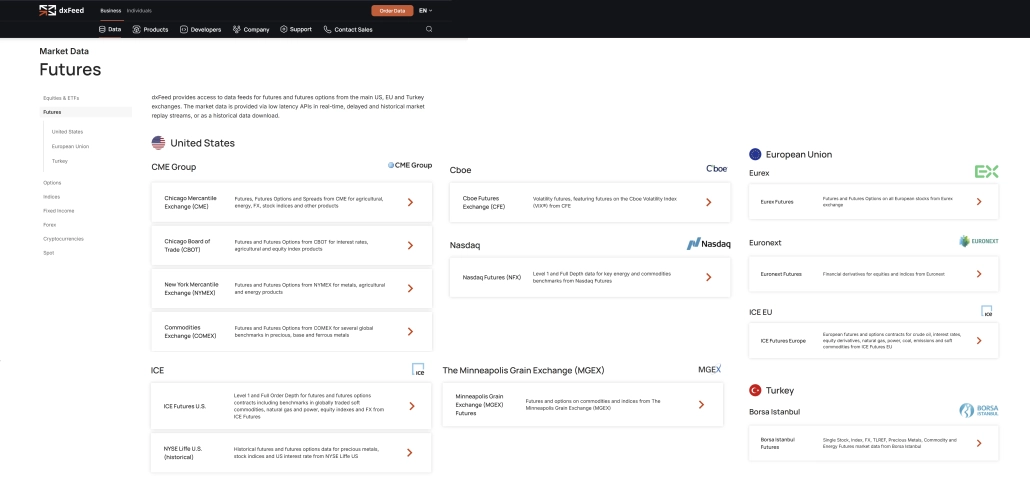
dxFeed is a market data provider with direct integration into ATAS. It covers the classic setup for futures markets: CME, EUREX, NASDAQ and other key exchanges in a single connection.
But dxFeed’s real strength shows on the US equity market:
- The US stock market is decentralized: the same security trades simultaneously on Nasdaq, NYSE Arca, Cboe EDGX and dozens of other venues.
- dxFeed consolidates trades from all venues into a single unified stream via CTA and UTP standards. In addition, the provider supplies Level II data from multiple venues — Nasdaq TotalView, NYSE Arca, EDGX and others.
- The result: in ATAS you see not just one exchange’s order book, but combined liquidity across selected venues — the way professional market participants see it.
Read more about how data consolidation works in ATAS — in this article.
How to connect:
- Purchase a subscription on the dxFeed website;
- Receive your login and password by email;
- In ATAS, follow the standard path: Connections → Add → dxFeed → Next.
Detailed steps — in the dxFeed connection guide.
Note:
- Not all chart types are supported. Delta, Reversal, Order Flow, Cumulative Trades and Range X, XV, Z, US are unavailable (standard Range candles are supported).
- Footprint charts are available for minute and second candles only.
- Historical data depth depends on the chart type. Detailed tables with limits are in the connection guide.
- If you encounter the error “Unable to load DLL DXFeed 64.dll” during connection, download and install the library via this link.
IQFeed
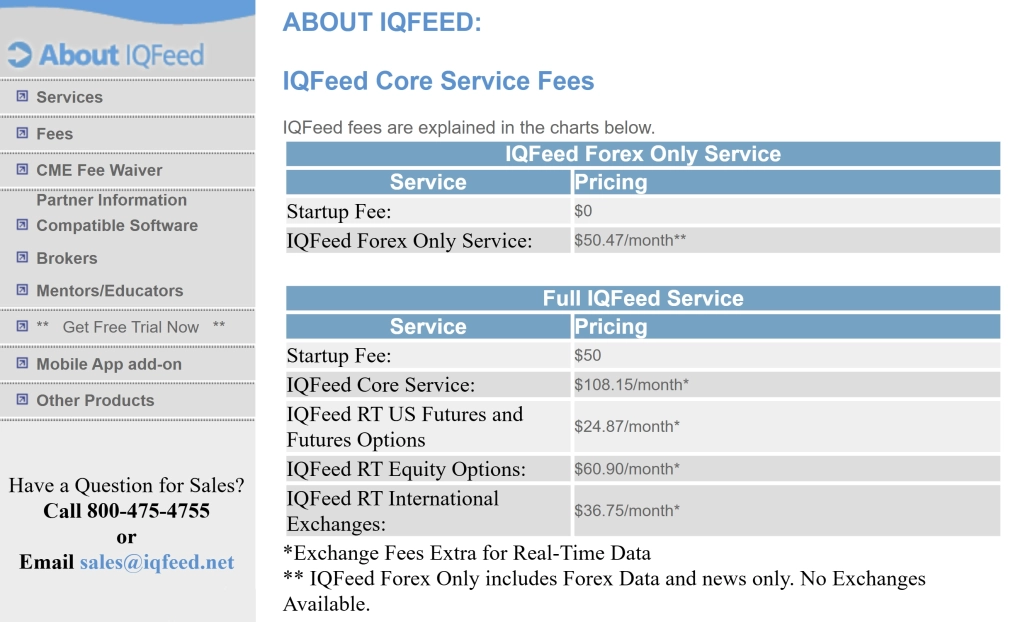
IQFeed is a market data provider with broad coverage of US exchanges. It covers futures and equities on NYSE, NASDAQ and AMEX — a good choice for those working across multiple asset classes.
Connecting requires installing the IQFeed client software, which acts as an intermediary between the provider and ATAS.
How to connect:
- Register an account on the IQFeed website. Registration requires a Visa or Mastercard — $1 will be charged for verification and immediately refunded.
- Download and install the IQFeed client software.
- Launch the client and enter the credentials from your registration email.
- In ATAS, follow the standard path: Connections → Add → IQFeed → Next.
Detailed steps — in the IQFeed connection guide.
Tai Pan
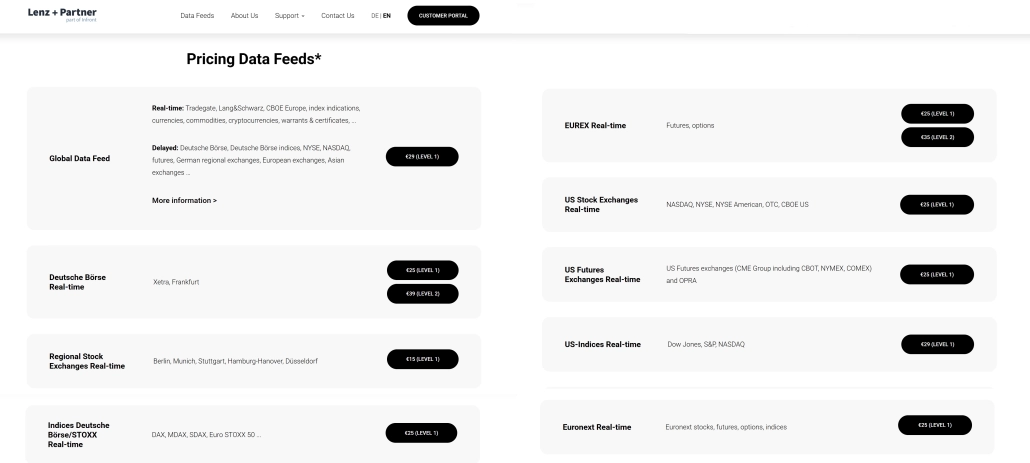
Tai Pan is a market data provider by German company Lenz + Partner. Aimed at private investors and active traders, it offers data at competitive pricing with seamless integration into ATAS.
How to connect:
- Register on the Tai Pan website and obtain your client ID and password.
- In ATAS, follow the standard path: Connections → Add → TAI-PAN → Next.
- Fill in the form: Connection name — any name for the list, ID — client number from the email or client portal, Password — your Tai Pan account password.
Detailed steps — in the Tai Pan connection guide.
Broker Connections: Market Data and Your Account in One Place
A broker is the intermediary between you and the exchange. Without one, you can’t access exchange markets directly: a broker provides your account, the order execution infrastructure and, as a rule, a market data feed included. Connect the connector — and ATAS starts receiving market data directly through the broker’s infrastructure. In most cases, a separate data provider subscription isn’t needed.
ATAS supports connections to a wide range of brokers. Let’s go through each option in detail.
Interactive Brokers (IBKR)
Interactive Brokers is a US broker founded in 1978, a member of NYSE, FINRA and SIPC, regulated by the SEC and CFTC. Widely used among professional traders worldwide, with broad market coverage, reliable infrastructure and the ability to open an account as a resident of most countries.
The market data provider within the IBKR ecosystem is GFIS (Global Financial Information Services GmbH). All subscriptions, data streaming and billing within Interactive Brokers go through GFIS. Purchased subscriptions also work in third-party analytics platforms — including ATAS.
Note:
- ATAS connects to IBKR not directly, but through the TWS (Trader Workstation) terminal — it must be installed and running on your computer.
- The connector works only for the US market.
- To receive tick data, you need a market data subscription — without it, volume analysis will be unavailable.
- IBKR does not transmit trade direction — ATAS calculates it independently using Bid/Ask, so Delta values may differ from other connections and change after a chart refresh.
- IBKR market data may differ significantly from other providers due to the specifics of this connection — keep this in mind when analyzing.
How to connect:
- Download and install the latest version of TWS.
- In TWS: Configuration → API → Settings. Configure the following:
- Enable Activate ActiveX and socket clients
- Disable Read-only API
- Enable Load open orders on connection
- Enable Send API notifications in English
- If the port is busy — change Socket Port to a free one
- In ATAS: Connections → Add → Interactive Brokers → Next.
- Specify the connection parameters:
- Server address — default 127.0.0.1:7497
- Client ID — any number greater than 0 (default 1)
- Number of DOM levels — default 50
- Click OK — the connection will appear in the connections list.
→ Detailed guide to connecting IBKR to ATAS
Getting Free IBKR Market Data
IBKR provides several options for free data access.
Delayed Data — market data with a 10–20 minute delay. Available by default for most US equities with no configuration needed.
Fee Waived — if your trading commissions exceed $20–$30 per month, the data subscription fee is automatically waived. In practice, active users get data at no additional cost.
Paid Market Data
For comprehensive analysis you’ll need a real-time streaming data feed. In IBKR, this is configured through the subscriptions system.
How to set up subscriptions?
- In your IBKR account, click the profile icon;
- Click Settings;
- Go to Market Data Subscriptions.
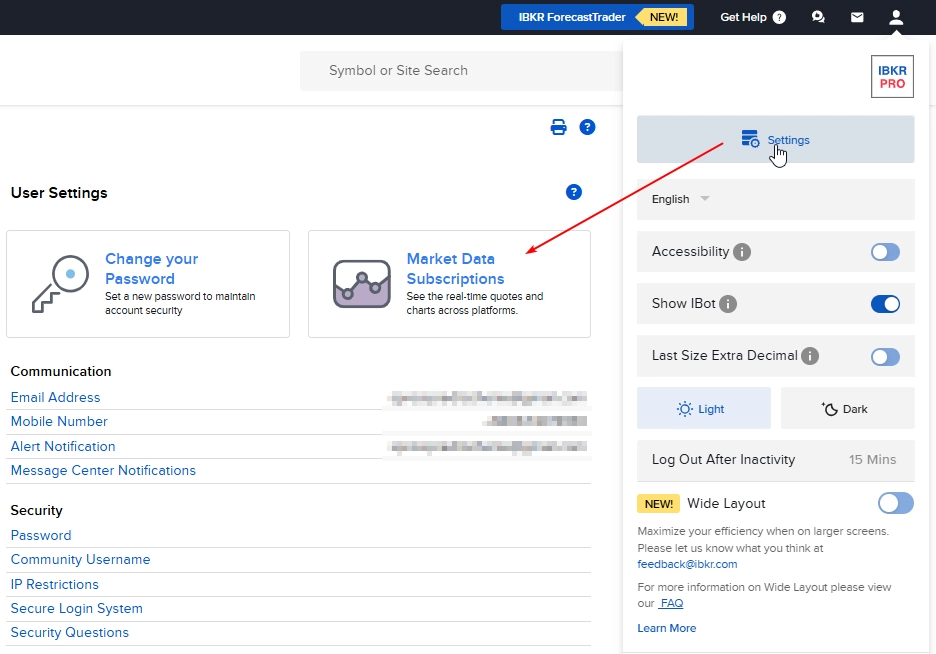
If you’re a new client, set up your statuses first.
Market Data API Acknowledgement — sign the form (1).
⚠️ Market Data Subscriber Status — confirm Non-Professional status. This matters: without this step, data subscription costs can jump from a few dollars to hundreds of dollars per month (2).
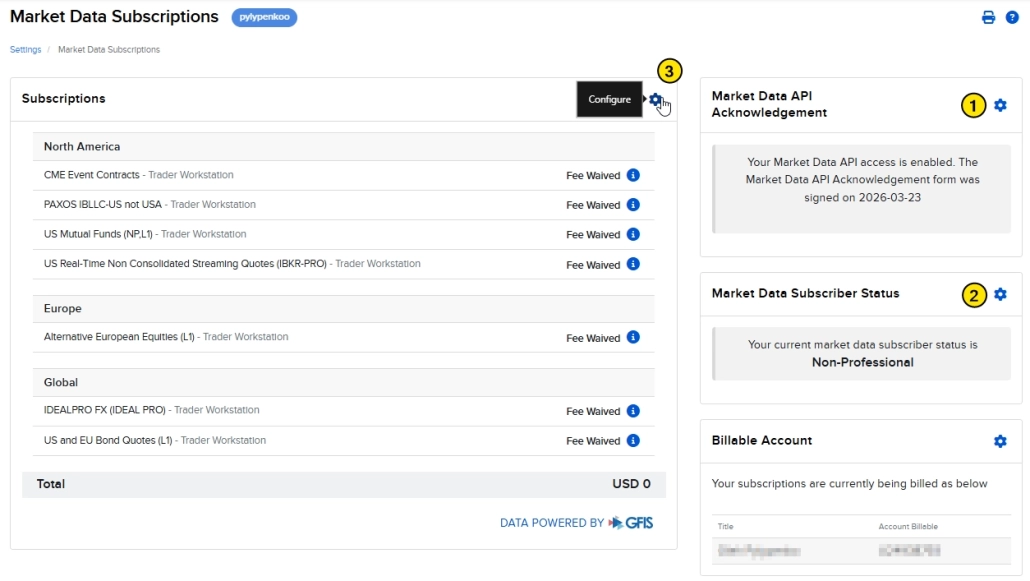
After setting up your statuses, the subscription catalog opens, grouped by region (3). Subscriptions can be added or cancelled at any time.
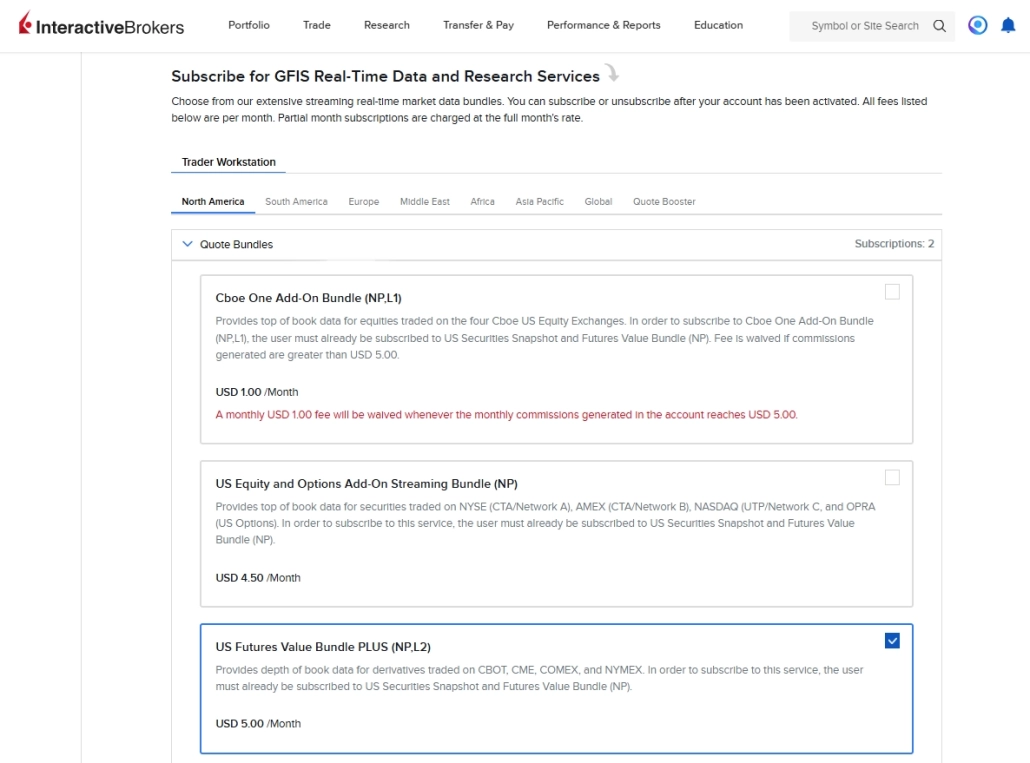
Example for E-mini S&P 500 futures (ES, CME): US Futures Value Bundle PLUS — $5/month. This package gives access to the order book, heatmap and other modules for analyzing limit order activity.
Exante
Exante is a European Direct Market Access (DMA) broker founded in 2011. Regulated by the FCA (UK), CySEC (Cyprus) and SFC (Hong Kong). Focused on professional traders and institutional clients: access to more than 50 exchanges and 2 million financial instruments — equities, ETFs, bonds, futures, options, metals and currencies — all from a single multi-currency account.
Connection to ATAS is made via the FIX protocol. The broker provides connection credentials (FIX TRADE and FIX FEED) after account opening.
If you don’t yet have an Exante account, you can start with a demo account. It’s available immediately after registration, with no time limit and 1,000,000 EUR in virtual funds. Data arrives with a 30-minute delay.
How to connect:
- In ATAS: Connections → Add → Exante → Next.
- Select the account type — live or demo.
- Fill in the connection parameters using the FIX credentials from your broker:
- Order connection settings — FIX TRADE credentials from Exante.
- Price connection settings — FIX FEED credentials from Exante.
→ Detailed guide to connecting Exante
NinjaTrader
NinjaTrader is a US broker and analytics software developer founded in 2003. Specializes in futures markets and has more than 2 million users worldwide. Regulated by the CFTC and NFA. In 2025, it became part of Kraken — a major global crypto exchange. NinjaTrader offers its own brokerage infrastructure and also supports connections via Rithmic and CQG.
To connect to ATAS, NinjaTrader uses a dedicated indicator ADataFeeder8, which is installed automatically alongside ATAS.
Important:
First add the connector in ATAS, then add the indicator to a chart in NinjaTrader, and only then connect the connector.
NinjaTrader does not transmit trade direction — ATAS determines it independently using Bid/Ask, so occasional discrepancies in tick direction display are possible.
How to connect:
- In NinjaTrader: Tools → Automated Trading Interface → enable AT Interface.
- Add the ADataFeeder8 indicator to any open chart in NinjaTrader.
- In ATAS: Connections → Add → NinjaTrader → Next.
- Click Close, then Connect.
If the ADataFeeder8 indicator is not visible — close NinjaTrader and reinstall ATAS. After reinstalling, the file ADataFeeder8.dll will appear in Documents/NinjaTrader 8/bin/Custom.
→ Detailed guide to connecting NinjaTrader
Exchange Infrastructure Connections
If a data provider simply sells you a market data feed and a broker opens your account and executes orders, an infrastructure provider is the technology intermediary between the broker and the exchange. It handles order routing, market data transmission and risk management. Most futures brokers don’t build this infrastructure themselves — they connect to Rithmic, CQG or CTS and offer those capabilities to their clients.
For you as an ATAS user, this means one thing: if your broker operates through Rithmic or CQG, you connect not to the broker directly, but to that infrastructure — and get both market data and account access through it.
Rithmic
Rithmic is a US provider of exchange infrastructure for direct market access to futures exchanges (DMA). Specializes in high-speed data transmission with minimal latency. Data is delivered unfiltered — unlike some other providers that, under high load, drop a portion of ticks and retain only the latest updates.
Rithmic is supported by a wide range of futures brokers. If your broker operates through Rithmic, the account connects to ATAS directly — no additional setup on the broker’s side required.
Connection is possible in two ways: directly (your Rithmic login and password are all you need) or via RTrader Pro (if your broker requires it or you need to connect multiple analytics platforms simultaneously).
Note:
Rithmic is sensitive to internet connection quality and CPU load. An unstable connection may cause delays and disconnections.
How to connect:
- In ATAS: Connections → Add → Rithmic → Next.
- Sign the agreement and enter your Rithmic account login and password.
- Select the server based on your broker.
- If needed, enable the Aggregated Quotes flag — reduces CPU load but decreases data update speed.
→ Detailed guide to connecting Rithmic
CQG/Continuum
CQG is a US provider of exchange infrastructure founded in 1980. Specializes in high-speed order routing, market data and analytical tools for professional market participants. CQG’s partner network spans more than 100 brokerage environments and provides direct access to over 45 exchanges worldwide via a global network of co-located gateways.
Continuum is CQG’s API division, launched in 2010, responsible for integration with third-party platforms including ATAS.
Note:
- A single CQG login allows simultaneous use in only one analytics platform. If you need to connect multiple platforms — request an additional login from your broker.
- If your broker does not by default provide ATAS access via CQG, contact the broker directly and ask them to add ATAS (identifier AdvancedTS) to the list of available platforms for your CQG account.
How to connect:
- In ATAS: Connections → Add → CQG → Next.
- Enter your ATAS login and password, select connection type Live.
→ Detailed guide to connecting CQG/Continuum
Trading Technologies
Trading Technologies is a US SaaS provider of exchange infrastructure founded in 1994. Originally specialized in futures and options, now also covers fixed income, FX and crypto. TT’s client base includes tier-1 banks, hedge funds, prop trading firms and CTAs. TT infrastructure is used by a number of brokers who provide their clients access to the TT ecosystem.
To connect to ATAS you’ll need a TT account with API access — provided by a broker that operates through TT.
How to connect:
- In ATAS: Connections → Add → Trading Technologies → Next.
- Specify the connection parameters:
- Environment type — your TT account environment (Live or UAT).
- Use proxy — enable if connecting through a TT proxy.
- Login / Password — your TT proxy account credentials.
→ Detailed guide to connecting Trading Technologies
CTS (T4)
CTS (Cunningham Trading Systems) is a US provider of exchange infrastructure by the creators of the T4 platform (Plus500US Futures Technologies). Provides direct connectivity to major global futures exchanges with flexible risk management. CTS infrastructure is used by a broad range of brokers — for both professional and retail clients. Since 2023, CTS has been part of Plus500 Futures Technologies.
How to connect:
- If you don’t yet have a CTS account, you can start with a free CTS Demo. Data will arrive with a 10-minute delay in that case.
- In ATAS: Connections → Add → CTS → Next.
- Enter your CTS account login and password, select connection type Live.
→ Detailed guide to connecting CTS
MT5
MetaTrader 5 is an analytics platform supported by hundreds of brokers worldwide. ATAS connects to MT5 and receives market data from the broker through it. If your broker provides access via MT5, no additional market data subscription is needed.
MT5 supports a wide range of markets — the specific set depends on your broker. Supported exchanges include both US futures venues and European ones.
Note:
MT5 transmits data not tick-by-tick, but at one update per second — a limitation of the MetaTrader 5 API. If 1,000 trades occurred in one second, ATAS receives them as a single update. For basic analysis this is sufficient, but for precise volume analysis broken down by individual trade, Rithmic, CQG or dxFeed are better suited.
How to connect:
- In ATAS: Connections → Add → MetaTrader 5 → Next.
- Enter your MT5 account login and password.
→ Detailed guide to connecting MetaTrader 5
Crypto Exchanges: Market Data and Account Access via API
Connecting to crypto exchanges works differently from futures brokers. You don’t need a separate data provider or a market data subscription — just create API keys in your exchange account and connect them in ATAS. After that, both market data and access to your account are immediately available.
⚠️ Important for all exchanges: before connecting, activate one-way position mode. Hedging mode is not supported in ATAS.
Binance
Binance was founded in 2017 and within months became one of the world’s largest crypto exchanges by trading volume. Today it is a global ecosystem: spot exchange, derivatives, staking, an educational platform and its own blockchain. For ATAS, the most relevant products are futures: perpetual contracts and fixed-term crypto contracts with high liquidity.
Before connecting, make sure you have a Binance futures account — without it the connection may not work correctly. Also activate one-way position mode: hedging is not supported in ATAS.
To connect, create an API key in your Binance account.
Connection in ATAS:
- Connections → Add → Binance → Next.
- Enter your API Key and Secret Key.
→ Detailed guide to connecting Binance
Bybit
Bybit was founded in 2018 by Ben Zhou — a former senior executive at forex broker XM. The exchange originally specialized exclusively in derivatives, and they remain its core strength: high liquidity, a wide selection of perpetual contracts and an interface built for active traders. Today Bybit serves more than 60 million users and is one of the leading crypto exchanges by derivatives volume.
To connect, create an API key in your Bybit account and configure the permissions.
Connection in ATAS:
- Connections → Add → Bybit → Next.
- Enter your API Key and Secret Key.
- If the primary address api.bybit.com is unavailable — enable Use alternative endpoint to connect via api.bytick.com.
→ Detailed guide to connecting Bybit
Kraken
Kraken was founded in San Francisco in 2011 — one of the earliest players in the crypto market. Bitcoin appeared in 2009, the first exchanges in 2010, and they quickly collapsed. Kraken was built as a reliable alternative to those predecessors. Security became its foundation: the exchange has never been hacked since its inception — a remarkable record in the crypto world.
Kraken was the first crypto exchange whose data appeared on the Bloomberg terminal, and the first to receive a banking license in the US (SPDI in Wyoming). In 2025, Kraken acquired NinjaTrader for $1.5 billion, extending its ecosystem into traditional futures markets.
Today Kraken offers spot trading, derivatives, staking and institutional services. In ATAS, it connects as a crypto exchange via API keys.
Connection in ATAS:
- Connections → Add → Kraken → Next.
- Enter your API Key and Secret Key.
→ Detailed guide to connecting Kraken
Other Supported Exchanges
ATAS also supports connections to Bitget, Bitfinex, OKX, Phemex and Whitebit. The connection logic is the same for all: create API keys in your exchange account and enter them in ATAS via Connections → Add → [exchange name] → Next.
Full list of connection guides — in the ATAS knowledge base.
FAQ
It depends on what you plan to analyze.
Right after installing ATAS, you have access to built-in demo connections and futures data with a 15-minute delay — enough to explore the analytics platform and get started with volume analysis.
If you want to analyze crypto — connect your exchange account via API and you’ll get real-time data.
A broker or separate data provider is only needed for futures or equity data without delays. In that case, a Pro or Ultra subscription is also required.
Yes, significantly.
On Start and Plus, only one active connection is available — crypto exchanges only, with futures data on a 15-minute delay.
On Pro, you can simultaneously connect up to 3 crypto exchanges, brokers, and futures or equity data providers.
On Ultra, the number of connections is unlimited.
For more details — see the pricing page.
It depends on your plan. Start and Plus allow only one active connection. Pro allows up to three simultaneously, Ultra — unlimited. If you have multiple connections, make sure only one is assigned as Quote Provider per market — otherwise volumes will be double-counted and your analysis will be skewed.
Yes, this is a common setup. For example, receive market data via dxFeed while managing orders through your brokerage account. To do this, uncheck Quote Provider for the broker connector in the Connections window — it will be used only for account management, while data flows from the provider.
Check the Connections window. Each connector has a Quote Provider column — make sure the checkbox is enabled for only one source per market. If two connectors are simultaneously streaming data for the same instrument, ATAS sums the volumes and the Footprint chart no longer reflects the real picture.
Several possible causes. First — the connector is connected but not set as Quote Provider: check the Quote Provider column in the Connections window. Second — ATAS SIM is active, which doesn’t provide live data. Third — the instrument is not trading right now (off-market hours). Fourth — the market data subscription with the broker hasn’t been set up or activated.
Summary
Your data source is the foundation of volume analysis. The accuracy of Footprint charts, order book depth and the quality of all analytics depend on where and how market data flows in. Choose the right connection and set up ATAS for your needs in 6 steps.
Need help with setup? Every Thursday, ATAS experts host a live stream on YouTube. Topics: first launch and key settings, connecting market data and accounts, configuring charts, workspaces and templates, Chart Trader and order management. Join and ask questions live.
We also have:
- YouTube channel — webinars and tool breakdowns
- Blog and Knowledge Base — guides and analytical articles
- Telegram and Discord — community for sharing experience
Connect your market data, open your charts and explore the full depth of ATAS volume analysis.
Subscribe
Get the latest ATAS news delivered conveniently